
Checking why a SARS compliance status is non compliant
15 May 2025

Checking why a SARS compliance status is non-compliant requires evaluating registered profile details, outstanding returns and tax debt across all registered tax types on eFiling.
A non-compliant Tax Compliance Status (TCS) on the South African Revenue Service (SARS) eFiling platform indicates that a taxpayer has unfulfilled statutory obligations, such as outstanding returns, unpaid tax balance, unmerged tax profiles or unverified registration particulars 1 2. Because tax compliance is dynamic rather than static, a profile turns red instantly upon a filing or payment default 3 4.
Identifying the exact cause requires activating the My Compliance Profile dashboard and drilling down into specific tax types to examine line-item return defaults and debt balances 5 6 7. Crucially, obtaining a TCS PIN merely grants temporary third-party viewing access to real-time status and does not guarantee future compliance 3 8.
Tax type period debt and return status checks
Operational Context for South African SMEs
For directors, financial managers and registered representatives of South African small and medium enterprises (SMEs), maintaining a compliant tax status is essential for commercial operations, state tendering and regulatory standing 9 10. Compliance checks must encompass all registered tax types across every active tax period, including Corporate Income Tax (IT), Value Added Tax (VAT), and Payroll Taxes comprising Pay As You Earn (PAYE), Skills Development Levy (SDL) and Unemployment Insurance Fund (UIF) 7 11 12.
— Practical point from this guide
Statutory Meaning of Completion
Under South African tax administration, completion of a compliance check means achieving an verified green status across all compliance categories on eFiling, rather than merely submitting a return or making a payment 2 4 6. Because submitted returns and payments can take up to 48 hours to process and reflect on SARS systems, full completion requires verifying that system processing has finalised without outstanding line-item penalties, unallocated credits, or unfiled periods 4 7.
Legal and Regulatory Distinctions
To navigate compliance effectively, taxpayers must distinguish between statutory law, regulator guidance, and professional advisory recommendations:
- Statutory Law: The Tax Administration Act codifies SARS’s powers to monitor compliance, impose administrative non-compliance penalties for unfiled returns, issue estimated assessments under Section 91(5)(b), and alter a taxpayer’s status from compliant to non-compliant if defaults occur 13 14 15.
- Regulator Guidance: SARS external guides (such as GEN-ELEC-08-G01 and GEN-REG-01-G04) outline practical eFiling navigation, dashboard color indicators (green for compliant, red for non-compliant), and RAV01 maintenance rules 6 16 17.
- Evolv Recommendations: Evolv Accountants advises establishing monthly profile monitoring, maintaining centralised tax documentation, and verifying statement balances prior to issuing clearance PINs to third parties.
Prepare the information and authority: tax type period debt
Required Authority and eFiling Permissions
Before checking or remedying non-compliance, individuals must ensure they possess the requisite eFiling access rights and statutory authority:
- Registered Representative (RR) Standing: The natural person appointed with full legal authority to act on behalf of the legal entity must have an activated RR profile on eFiling 18. An external tax practitioner or accountant cannot act as an RR unless directly employed by the legal entity 18.
- eFiling Access Rights: The eFiling user profile must have "Tax Compliance Status" and "Tax Compliance Status Verification" rights enabled under Organisation Setup and Rights Groups 19 20.
- Delegated Practitioner Approval: Where a tax practitioner performs updates or tax product additions on the RAV01 form, the RR must authorize the request via the "Manage Access Requests" portal using a unique identifier code sent by email or SMS 21 22.
Essential Inputs and Documentation
Taxpayers should compile the following primary evidence prior to initiating eFiling checks:
- Official SARS Notice of Registration displaying active tax reference numbers 23.
- eFiling login credentials associated with the correct portfolio and entity profile 24.
- Recent Statements of Account (SoA) for Income Tax, VAT, and Payroll Taxes 4 7.
- Copies of filed returns (ITR14, VAT201, EMP201) and filing receipts 24.
- Proof of payment or approved deferred payment agreements for outstanding balances 1 15.
- FICA proof of business address and verified corporate bank account details 18 25.
Core Definitions
- Tax Compliance Status (TCS) System: The modern digital framework replacing paper clearance certificates, generating a secure PIN for real-time online verification by authorised third parties 8 16.
- My Compliance Profile (MCP): The visual eFiling dashboard displaying overall compliance and line-item status across Registration, Submission of Returns, and Debt 2 5.
- RAV01 Form: The Registration, Amendments and Verification form used to maintain legal entity legal details, registered particulars, and tax product subscriptions on eFiling 17 23 26.
- Merge Entities Function: The mandatory eFiling utility that unifies all separate tax reference numbers belonging to a single legal entity into a single profile 1 20 27.
Complete the task step by step: return status checks
Follow this sequenced, official procedure on eFiling to locate and diagnose non-compliance flags without reliance on unverified screens 6 7 20 24:
- Select Entity Portfolio: Log into SARS eFiling, select the correct portfolio (Individual, Organisation, or Tax Practitioner), and select the specific taxpayer from the list 24.
- Activate TCS Services: Select the "Tax Status" tab from the top navigation menu or select the "Tax Compliance Status" icon on the landing page 24. If not previously activated, select "Activation", check the TCS checkbox, accept the disclaimer, and select "Activate" 20 24.
- Complete Profile Unification: If prompted, complete the "Merge Entities" process under "SARS Registered Details" or accept the declaration on the pre-populated ERC01 form to ensure all active tax reference numbers are linked to the profile 1 20 27 28.
- Open My Compliance Profile: Select "My Compliance Profile" from the Tax Compliance Status menu 2 29.
- Evaluate Main Dashboard Indicators: Review the top-level status indicators across the four core categories 2 6:
- Overall Compliance Status (Summary status) 2.
- Registration Status (Active registration for all liable tax products) 1 2.
- Submission of Returns (All returns filed up to due dates) 1 2.
- Debt (Zero outstanding tax debt unless payment arrangement exists) 1 2.
- Drill Down into Red Non-Compliant Flags: For any category displaying a red indicator, select the expand button (+) on the left-hand side to reveal the tax product breakdown (Income Tax, VAT, PAYE, SDL, UIF) 6 7 12.
- Expand Period-Level Defaults: Select the down arrow next to the non-compliant tax product to display period-level details, identifying exact unfiled return periods or debt balances 4 6 7.
- Review System Remedy Instructions: Hover over the red indicator or select "How to address non-compliance" to view SARS recommendations and system remedy links 4 30 31.
Check the result against the evidence: tax type period debt
Distinguishing Submission from Verified Completion
Submitting an outstanding return or making an electronic payment does not automatically update a non-compliant profile to compliant 4. System batch updates and banking clearances require up to 48 hours to reflect on the My Compliance Profile dashboard 4. Independent verification requires checking concrete system evidence:
- Filing Acknowledgements: Confirming receipt of ITA34 notices of assessment or eFiling filing receipts 24.
- Statement of Account Verification: Requesting an updated Statement of Account via eFiling to confirm that payments or credit re-allocations have cleared the outstanding balance to zero 4 7.
- Dashboard Refresh: Accessing "My Compliance Profile" after the processing window and selecting "Refresh Status" to confirm that indicators have transitioned from Red ("Non-Compliant") to Green ("Compliant") 4 6.
Reproducible Hypothetical Example
Illustrative Example (Values are model figures for demonstration purposes):
An SME trading company checks its eFiling profile and discovers an overall Red "Non-Compliant" status caused by flags under Submission of Returns and Debt 6.
- Step 1 (Diagnosis): The financial manager expands Submission of Returns and discovers an unfiled Corporate Income Tax return for Period 01 7. Under Debt, an outstanding administrative penalty balance of R15 000 is reflected under Income Tax 4 32.
- Step 2 (Legal Effect): Under Section 91(5)(b) of the Tax Administration Act, an estimated assessment issued for an unfiled return remains final until the actual return is submitted 14. The administrative penalty of R15 000 was imposed under Chapter 15 for failure to submit the return by the stipulated due date 13 33.
- Step 3 (Remediation): The SME files the outstanding ITR14 return on eFiling 7. Next, the SME pays the R15 000 penalty balance via eFiling EFT 4.
- Step 4 (Verification Check): The SME waits 48 hours for processing 4. The manager requests an updated Income Tax Statement of Account showing a zero balance 4 7. Upon clicking "Refresh Status" on the MCP dashboard, the Submission of Returns and Debt indicators shift to Green ("Compliant"), restoring the overall profile to Green 4 6.
Handle exceptions and unresolved cases: return status checks
Disputed System Records and "Challenge Status"
Where a red non-compliance flag appears due to a SARS processing delay, incorrect capturing, or a disputed assessment, taxpayers should not re-submit returns unnecessarily 4 34. Instead, the eFiler can use the "Challenge Status" functionality 35 36:
- Select the "Challenge Status" button on the My Compliance Profile screen (active only when non-compliance is present) 35.
- Provide a clear, concise motivation explaining why the status is incorrect, attaching supporting proof (such as payment receipts or filing notifications) 36.
- Submit the case to trigger a manual audit review by SARS 35 37.
- If SARS accepts the challenge motivation, a limited-time system "override" is applied to the profile, temporarily reflecting a compliant status while the underlying dispute is finalised 36.
- Track case progress under "My Account Enquiries" on the TCS menu 38.
Unmerged Tax Profiles and Registration Blocks
- Unmerged Tax Reference Numbers: If a tax product (such as a newly registered VAT or PAYE number) does not appear on the MCP dashboard, the taxpayer must run the "Merge Entities" tool under "SARS Registered Details" 1 20 27. Failing to merge reference numbers causes incomplete compliance reporting and blocks new profile activations 20 27 39.
- Branch Visit Requirements: Where non-compliance relates to legal entity registration details (such as updating registered representative particulars or physical addresses), eFiling functionality may be restricted, requiring an in-person appointment at a SARS branch with supporting legal documents 31.
Administrative Penalty Remittance and VDP Boundaries
- Penalty Remittance: Administrative non-compliance penalties imposed under Chapter 15 of the Tax Administration Act may be remitted under Section 217/218 if the non-compliance was a first incidence (no penalties in the preceding 36 months and default resolved within 5 business days), caused by exceptional circumstances (such as severe illness or SARS error), or incorrectly imposed 34 40 41. If SARS refuses remittance, an objection may be lodged under Chapter 9 42.
- Voluntary Disclosure Programme (VDP): Taxpayers seeking relief for unfiled returns or historical defaults may apply for VDP relief under Chapter 16, which grants 100% relief from administrative non-compliance penalties (excluding late filing penalties), provided the disclosure is voluntary and made prior to audit notification 43.
Next steps for Tax clearance and compliance
Task and Completion Checklist
| Step | Input or evidence | Responsible person | Completion check | Exception or next action |
|---|---|---|---|---|
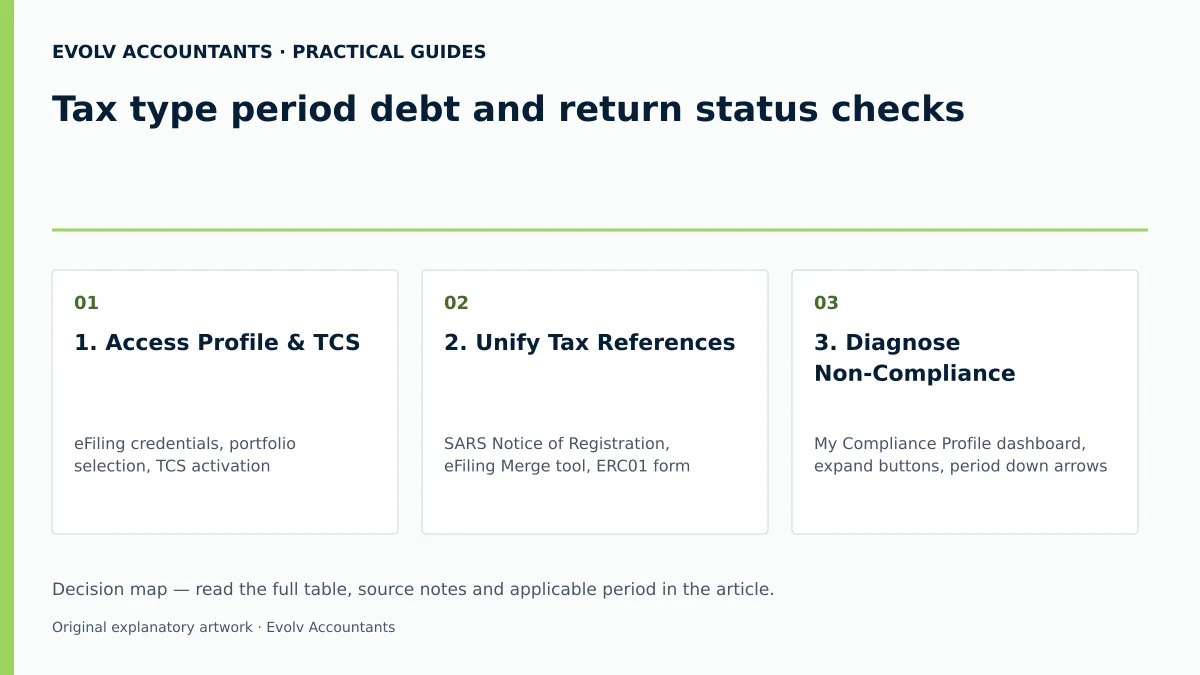
| 1. Access Profile & TCS | eFiling credentials, portfolio selection, TCS activation 20 24 | Registered Representative / Tax Practitioner 18 24 | TCS tab accessible; entity profile selected 20 24 | Grant TCS access rights under Rights Groups if option is missing 19 |
| 2. Unify Tax References | SARS Notice of Registration, eFiling Merge tool, ERC01 form 1 27 28 | Registered Representative 18 27 | All active tax reference numbers displayed on MCP 1 28 | Execute "Merge Entities" under SARS Registered Details if numbers are unlinked 20 27 |
| 3. Diagnose Non-Compliance | My Compliance Profile dashboard, expand buttons, period down arrows 2 6 7 | Financial Manager / Accountant | Exact unfiled return periods or unpaid debt line items identified 4 6 7 | Hover over red indicators to read SARS system remedy instructions 4 31 |
| 4. Submit Filings & Debt | Outstanding returns (ITR14/VAT201/EMP201), SoA, eFiling EFT payment 4 7 | Accountant / Tax Advisory Team | Filing receipts generated; SoA reflects settled balances 4 7 24 | Apply for Chapter 15 penalty remittance if eligible for first incidence or SARS error 34 40 41 |
| 5. Verify Completion | eFiling SoA, MCP "Refresh Status" button 4 6 | Registered Representative | MCP dashboard displays Green ("Compliant") across all categories 4 6 | Submit "Challenge Status" case if system fails to update after 48 hours 4 35 |
| 6. Issue TCS PIN | Tax Compliance Status Request portal, PIN generation 3 8 44 | Registered Representative | Active TCS PIN generated and distributed to authorised third parties 3 8 45 | Monitor profile monthly; PIN reflects live status and turns red upon new default 3 4 |
Frequently Asked Questions
Why does my TCS PIN show non-compliant when my previous clearance was approved?
A TCS PIN provides live, real-time access to your tax profile rather than a static guarantee 3 8. If a new filing due date passes without a return being submitted, or if a tax debt becomes overdue after the PIN is issued, the status on the My Compliance Profile dashboard instantly turns red, causing third-party verification checks to reflect non-compliant 3 4.
How long does SARS take to update My Compliance Profile after I pay or file?
Returns submitted or payments made on eFiling can take up to 48 hours to reflect on the My Compliance Profile dashboard 4. Taxpayers should request an updated Statement of Account to verify that balances have settled before selecting "Refresh Status" on the MCP dashboard 4 6 7.
What should I do if eFiling reflects a debt or default that is incorrect?
If non-compliance is caused by a SARS processing delay, capturing error, or disputed assessment, do not re-submit duplicate returns 4 34. Select the "Challenge Status" button on the MCP dashboard, submit a formal motivation with supporting proof, and track the case under "My Account Enquiries" 35 36 38. If accepted, SARS applies a temporary override restoring compliant status while resolving the case 36.
Can an external tax practitioner act as my company's Registered Representative on eFiling?
No. Under SARS regulations, an external accountant or tax practitioner cannot be appointed as a Registered Representative unless they are a direct employee of the legal entity 18. An external practitioner can maintain tax products on the RAV01 form only after the confirmed internal Registered Representative approves the access request via "Manage Access Requests" on eFiling 21 22 46.
What does the "Compliant (New Taxpayer)" status indicator mean?
For newly registered taxpayers who have not yet reached their first filing or payment due date, SARS displays an overall status of "Compliant (New Taxpayer)" 29 44. This indicator confirms to third parties that the entity is fully registered and compliant, but notes a limited historical filing track record 29 44. Ask Evolv about tax type period debt and return status checks. Share the relevant records so the support required can be scoped.
Related guides
- Obtaining a tax compliance status PIN
- Restoring compliance after outstanding returns
- The Proactive SARS Audit Guide: Keeping Your Business Ledger Sanitised
Sources
- Manage your Tax Compliance Status | South African Revenue Service
- https://www.sars.gov.za/wp-content/uploads/Ops/Guides/GEN-ELEC-08-G01-Guide-to-the-Tax-Compliance-Status-functionality-on-eFiling-External-Guide.pdf
- https://www.sars.gov.za/wp-content/uploads/Ops/Guides/LAPD-TAdm-G01-Short-Guide-to-the-Tax-Administration-Act-2011.pdf
- https://www.sars.gov.za/wp-content/uploads/Ops/Guides/GEN-REG-01-G04-How-to-Complete-the-Registration-Amendments-and-Verification-Form-RAV01-External-Guide.pdf