
Obtaining a tax compliance status PIN
30 December 2024

Obtaining a tax compliance status PIN requires an active SARS eFiling profile and verified compliance across all registered tax obligations 1 2 3.
This operational guide provides South African small and medium enterprises (SMEs) and registered corporate taxpayers with a practical framework for applying for and verifying a Tax Compliance Status (TCS) PIN 1 4. Governed by Section 256 of the Tax Administration Act 28 of 2011 5 6 and operationalised through South African Revenue Service (SARS) external guides 4 7, the TCS system replaces legacy paper Tax Clearance Certificates with real-time electronic verification 1 5.
It is vital to distinguish between statutory tax law, regulatory guidance issued by SARS, and practical advisory recommendations provided by Evolv Accountants 4 5. While statutory law defines compliance obligations and SARS procedural guides outline eFiling mechanics, Evolv Accountants recommends proactive compliance tracking to ensure operational readiness 2 5.
A TCS PIN provides third parties with temporary access to view a taxpayer's real-time tax compliance status at the specific moment of viewing; it does not constitute a permanent guarantee of future tax compliance 1 8 9.
TCS application and an independently checked PIN
For South African SMEs navigating commercial tenders, government procurement, or trade credit, completing a TCS application and securing an independently checked PIN confirms that the entity's tax affairs are in order with SARS 5 9 10. Completion of this task means that the taxpayer has successfully activated the TCS service, cleared all registered tax obligations, obtained an active security PIN, and validated that an independent third party can verify the status online 4 11 12.
The evidence boundary for a TCS application encompasses four distinct pillars: overall registration status, submission of tax returns, outstanding debt balances, and authorised entity details 2 13. SARS evaluates compliance across all tax types for which the entity is liable, including Income Tax (IT), Value Added Tax (VAT), and Pay As You Earn (PAYE) 2 3. Crucially, a TCS PIN reflects a taxpayer's status dynamically at the exact date and time it is viewed by a third party 1 8.
Because a PIN provides temporary access to real-time status rather than an enduring guarantee, subsequent non-compliance—such as a missed return or an unpaid debt—will immediately turn the status non-compliant upon subsequent third-party verifications 8 14.
Prepare the information and authority: tcs application
Before initiating a TCS application on SARS eFiling, SME directors and financial administrators must ensure that all required administrative rights, entity profile linkages, and documentation are properly configured 15 16 17.
eFiling Administrative Rights and Authority
Accessing TCS functionality requires specific user permissions within eFiling portfolios 15. eFiling administrators for organisation or tax practitioner portfolios must assign the required rights under the "Organisation" menu by selecting "Rights Groups" and editing "Manage Groups" 15. The administrator must tick the checkboxes for "Tax Compliance Status" and "Tax Compliance Status Verification" and select "Update" to grant operational access 15 16.
Profile Merging and Registration Verification
Taxpayers registered for multiple tax types must ensure that all tax reference numbers are merged under a single legal entity profile 16 17. SARS enforces the "Merge Entities" process on eFiling to prevent incomplete compliance assessments 16 17. If an entity has not merged its tax profiles, eFiling will prompt the user to complete the Entity Reference Number Confirmation on the ERC01 form during initial TCS service activation 17 18.
On the ERC01 form, the authorised representative must review all pre-populated tax reference numbers and sign the required declaration 18 19:
"I, as the taxpayer / trader / duly authorised representative... confirm that the tax reference number(s)... displayed on this form are true and correct" 19.
Required Inputs and Contact Particulars
To complete the TCR01 application form, the eFiler must assemble the following verified inputs 20 21:
- Taxpayer Particulars: Registered company name, trading name, registration number, and primary tax reference numbers (IT, VAT, PAYE) 20 21.
- Contact Information: A verified mobile cellphone number and active email address 21. SARS issues the security PIN directly via SMS to the captured mobile number 21 22.
- PIN Expiry Duration: A selected validity period in months (expressed as two digits, e.g. 05 or 12) 23.
Complete the task step by step: an independently checked pin
Obtaining a TCS PIN follows a sequenced online workflow grounded in SARS external guide GEN-ELEC-08-G01 4. Taxpayers should execute the following step-by-step process 20 24 25 26 27:
- Log In and Select Profile: Log into SARS eFiling, select the correct taxpayer from the "Taxpayer list", and navigate to the "Tax Status" tab on the main top menu 15 24.
- Activate TCS Service: Select "Activation" under the "Tax Compliance Status" menu 25. Tick the "Tax Compliance Status" checkbox, read and accept the "Disclaimer", and click "Activate" 25.
- Confirm Entity Registration: If prompted with "Awaiting Registration Verification", click "Continue" to open the ERC01 Entity Reference Number Confirmation page 3 18 28. Verify all pre-populated reference numbers, accept the declaration, and click "Submit Form" to finalise activation 18 29.
- Inspect My Compliance Profile (MCP): Click "My Compliance Profile" to review the real-time compliance dashboard 13 26. Verify that the status indicators across Registration, Submission of Returns, and Debt display green "Compliant" icons 13 30. Newly registered entities with no filing history will display a green "Compliant (New Taxpayer)" indicator 26 31.
- Submit TCS Request (TCR01): Select "Tax Compliance Status Request" from the menu 27 32. Under "New Compliance Request", select "Good Standing" from the "Type" drop-down menu and click "Request" 20 27.
- Complete TCR01 Form: Verify pre-populated taxpayer details, confirm contact mobile and email details, enter the desired PIN expiry duration in months, accept the final declaration, and click "Submit form" 20 21 23.
- Retrieve and Distribute PIN: Navigate to the Tax Compliance Work Page 31 33. Expand the approved request to view the 10-digit security PIN 11 33. Use the action buttons to issue the PIN via SMS ("SMS PIN") or print the official PIN Issued Letter ("Print PIN") 22 34.
Check the result against the evidence: tcs application
Assuming that submitting a TCR01 form equals successful third-party verification is a common compliance error. Independent verification evidence must be confirmed through eFiling 4 12 35.
Independent Third-Party Verification Procedure
To ensure that an external organisation can independently check the PIN, the receiving third party must log into eFiling, activate "Tax Compliance Status Verification", and navigate to "New Verification Request" 36 37 38. The third party inputs the taxpayer's Tax Reference Number, Security PIN, and visual Security Code, then clicks "Continue" 12. A successful verification displays a "Result Summary" page detailing the taxpayer's registered name, trading name, TCS request type, and current real-time compliance indicator 12 39.
Audit Trail Verification: "Who Viewed My Status"
The taxpayer can independently confirm that a third party checked their PIN by selecting the "Who viewed my status" tab under the "Tax Compliance Status" menu 35 40. Completing the search criteria displays a detailed audit log showing the third party's name, verification timestamp, status displayed at the time of viewing, and the verification channel (eFiling or SARS branch) 35 40 41.
PIN Status Monitoring
Taxpayers must monitor PIN states on the TCS Work Page 11. Active PINs display "ACTIVE" status, whereas revoked PINs reflect "CANCELLED" 11 42. If a PIN is cancelled, third parties attempting verification will be denied access 42.
Handle exceptions and unresolved cases: an independently checked pin
When a TCS application encounters operational errors or red non-compliance indicators, taxpayers must apply specific remediation procedures 11 30 43 44.
Non-Compliance Indicators (Red Status)
If the My Compliance Profile (MCP) displays a red "Non-Compliant" status indicator, click the expand arrow on the non-compliant category (Registration, Submission of Returns, or Debt) and select "How to address non-compliance" 30 43 45:
- Outstanding Returns: Select "Capture and submit the outstanding return" and click "Continue" to open the relevant Income Tax Work Page or VAT return directly 43 46.
- Outstanding Debt: Select "Make Payment" to launch the eFiling Additional Payments feature, or select "Request Payment Arrangement" if an agreed installment arrangement is required 47.
- Registration Discrepancies: If registration details are incorrect, eFiling presents a message directing the taxpayer to visit a SARS branch, as certain legal entity registration updates cannot be processed directly via MCP 43 46.
Challenging Incorrect Status
If a red indicator is displayed due to a SARS system error (such as an unreflected payment or processed return), select the "Challenge Status" button on the MCP 44 48. This creates a review case with SARS 48. Taxpayers can track progress under "My Account Enquiries" 49 50. Note that if a Challenge Status case is in progress, eFiling prevents submitting subsequent challenge requests until the existing case is finalised 44 48.
Audit Reviews and Supporting Document Requests
If a TCS request status changes to "Review in progress" or "Awaiting Relevant Material", SARS requires supporting documentation 11 51. Click the "TCR01 documents" link on the TCS Work Page 34 51. Allowed file formats are .pdf, .doc, .docx, .xls, .xlsx, .jpg, and .gif, with a maximum file size of 5MB per document 51. Documents must be uploaded and submitted within 21 business days 52 53.
Under Section 256 of the Tax Administration Act, SARS is required to issue or decline a TCS confirmation within 21 business days, but may extend this timeframe if further verification or audit investigations are required 6.
Reusable Task Checklist and Hypothetical Example
Reproducible Hypothetical Example: SME Compliance Remediation
Note: All values below are illustrative values for operational modeling.
- Entity Profile: Apex Engineering Solutions (Pty) Ltd (Tax Ref: 9123456789; Registered for Corporate Income Tax, VAT, and PAYE) 3 20.
- Initial Status: Overall Compliance Status on MCP displayed Red "Non-Compliant" due to an outstanding VAT return for period 2025/08 and an unpaid administrative penalty balance of R 2,500.00 14 30.
- Remediation Action:
- Selected "How to address non-compliance" on MCP for Submission of Returns 43. Completed and submitted the outstanding VAT201 return 46.
- Selected "Make Payment" under Debt remedies to settle the R 2,500.00 balance via eFiling Additional Payments 47.
- Allowed 48 hours for system processing, after which MCP updated to Green "Compliant" across all tax types 13 14.
- Outcome: Submitted TCR01 request for "Good Standing" with a 12-month expiry duration 20 23 27. Received active PIN 437611C964 and successfully validated third-party verification via eFiling 11 12.
Task and Completion Checklist
| Step | Input or evidence | Responsible person | Completion check | Exception or next action |
|---|---|---|---|---|
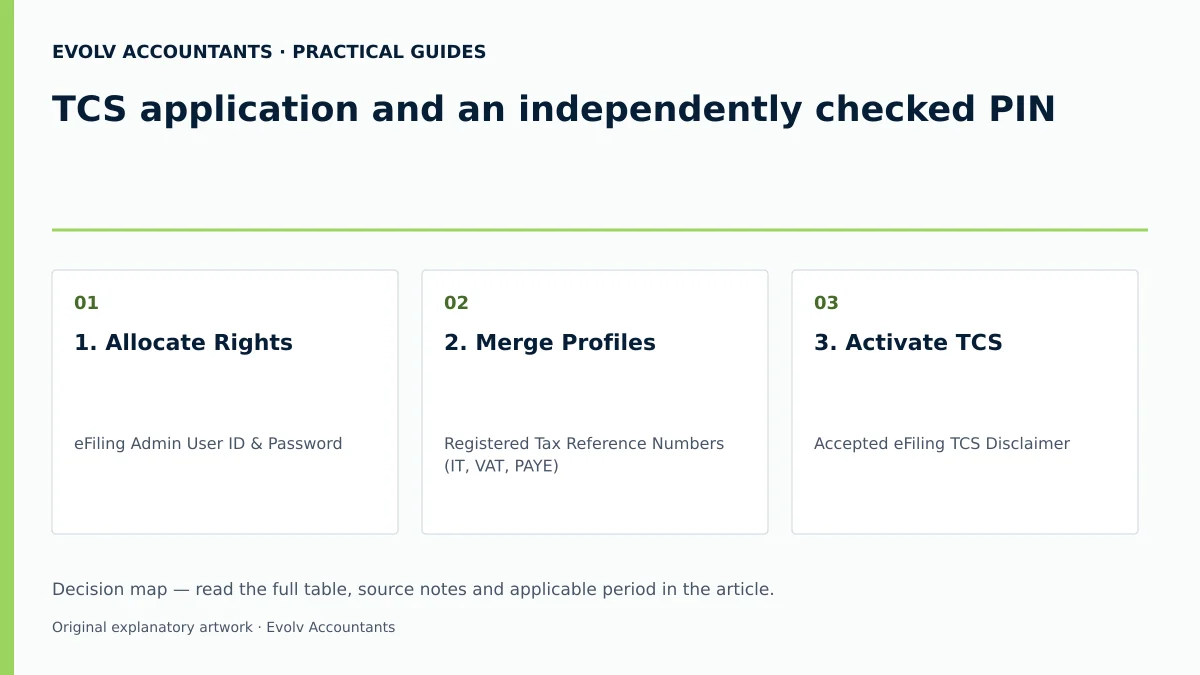
| 1. Allocate Rights | eFiling Admin User ID & Password | eFiling Administrator | Checkbox selected under Manage Groups for TCS & TCS Verification 15 16 | Request profile administrator access if rights are restricted 15. |
| 2. Merge Profiles | Registered Tax Reference Numbers (IT, VAT, PAYE) | Public Officer / Tax Practitioner | Single merged profile visible in eFiling profile setup 16 17 | Submit ERC01 Entity Reference Confirmation form on eFiling 18 19. |
| 3. Activate TCS | Accepted eFiling TCS Disclaimer | Authorised Representative | Status displays "Successfully Activated" 25 28 | Resolve "Awaiting Registration Verification" via branch or eFiling 3 43. |
| 4. Check MCP | Green "Compliant" status indicators on MCP dashboard | Financial Manager / Accountant | MCP displays Green across Registration, Returns, and Debt 13 30 | Execute "How to address non-compliance" for any Red indicators 30 43. |
| 5. Submit TCR01 | Verified Cellphone Number, Email, Expiry Duration (months) | Tax Specialist / Director | TCR01 form successfully submitted message displayed 20 23 33 | Upload supporting documents if status moves to "Review in progress" 11 51. |
| 6. Issue PIN | Approved TCS Request Reference Number | eFiler | 10-digit Security PIN issued via SMS or PIN Issued Letter 11 22 34 | Re-issue or generate new PIN if expired or cancelled 11 42. |
| 7. Verify PIN | Third-Party eFiling Verification Result Summary | Independent Third Party / Client | Audit entry logged in "Who viewed my status" tab 12 35 41 | Challenge incorrect status via MCP if system error occurs 44 48. |
Frequently Asked Questions
How long is a SARS Tax Compliance Status PIN valid?
When completing the TCR01 request form on eFiling, the applicant selects the preferred PIN expiry duration in months (e.g. 05 or 12 months) 23. However, the PIN only provides third parties with real-time access to the taxpayer's compliance profile at the moment of viewing 1 8. If the taxpayer becomes non-compliant during the PIN's validity period, the status displayed upon verification will immediately turn red 8 14.
What is the difference between a "Good Standing" and "Approval International Transfer" TCS PIN?
A "Good Standing" TCS PIN is applied for by organisations and individuals to confirm that their general tax affairs are up to date for commercial tenders, credit applications, or general compliance checks 10 20. "Approval International Transfer" (AIT) is a dynamic application reserved for individuals transferring funds abroad or who have ceased South African tax residency, requiring extensive supporting asset and liability documentation 10 54 55.
Why does my profile display "Compliant (New Taxpayer)"?
For newly registered entities that have not yet reached their first tax return filing or payment due date, SARS displays an overall indicator of "Compliant (New Taxpayer)" 26 31. This confirms that the taxpayer is in good standing while informing third parties performing verification that the entity has limited compliance history 26 38.
What should I do if my TCS application status shows "Review in progress"?
If a TCS request is selected for review, SARS requires supporting documentation to verify compliance 11 51. The taxpayer must click the "TCR01 documents" link on the TCS Work Page and upload the required files (PDF, DOCX, XLSX, JPG, GIF under 5MB each) within 21 business days 51 52. Under Section 256 of the Tax Administration Act, SARS must process or decline the confirmation within 21 business days, subject to audit extension rules 6.
Can a cancelled TCS PIN be reactivated?
If a taxpayer cancels an active PIN using the "Cancel PIN" button on eFiling, third parties can no longer verify compliance using that code 42. Once cancelled, the taxpayer must select "New PIN" on the TCS Work Page to generate a new active security PIN 11 42. Ask Evolv about tCS application and an independently checked PIN. Share the relevant records so the support required can be scoped.
Related guides
- Tax clearance certificates versus tax compliance status
- Checking why a SARS compliance status is non compliant
- The Proactive SARS Audit Guide: Keeping Your Business Ledger Sanitised
Sources
- Manage your Tax Compliance Status | South African Revenue Service
- https://www.sars.gov.za/wp-content/uploads/Ops/Guides/GEN-ELEC-08-G01-Guide-to-the-Tax-Compliance-Status-functionality-on-eFiling-External-Guide.pdf
- https://www.sars.gov.za/wp-content/uploads/Ops/Guides/LAPD-TAdm-G01-Short-Guide-to-the-Tax-Administration-Act-2011.pdf
- https://www.sars.gov.za/wp-content/uploads/Ops/Guides/GEN-REG-01-G04-How-to-Complete-the-Registration-Amendments-and-Verification-Form-RAV01-External-Guide.pdf