
Restoring compliance after outstanding returns
13 August 2025

Restoring tax compliance requires South African SMEs to systematically submit all outstanding tax returns and settle or arrange tax obligations with SARS.
South African small and medium-sized enterprises (SMEs) facing tax non-compliance must systematically resolve outstanding returns across all active tax types to restore good standing 1 2. Under South African tax law, tax compliance is governed by the Tax Administration Act, 2011 (Act No. 28 of 2011), which standardises return filing, debt management, and record retention duties 3 4 5. The South African Revenue Service (SARS) monitors tax health digitally through the My Compliance Profile (MCP) system on eFiling 6 7.
Restoring compliance involves activating profile access, completing entity reference merges, filing missing returns in order of statutory obligation, settling or structuring outstanding tax debts, and verifying that status indicators reflect green before requesting a Tax Compliance Status (TCS) PIN 1 8 9 10. A TCS PIN provides third parties with real-time digital access to view current compliance status at the specific moment of inquiry, but does not serve as a permanent guarantee of future tax compliance 6 11.
Outstanding returns prioritised by actual obligation
For South African SMEs operating under the Tax Administration Act, 2011, achieving full tax compliance requires filing all due returns across every registered tax product 1 2 3.
Law (Tax Administration Act, 2011): Section 25 of the Tax Administration Act, 2011 mandates that taxpayers submit returns in the prescribed form and manner by statutory filing deadlines 4 12. Failure to file returns allows SARS to issue estimated assessments under Section 95, which remain final until the actual outstanding return is formally rendered 13. Furthermore, taxpayers must retain all books of account and supporting documents for a minimum 5-year period to substantiate filed returns 5.
Regulator Guidance (SARS eFiling Manuals): SARS evaluates tax compliance across four primary requirement categories on the My Compliance Profile dashboard: Overall Compliance Status, Registration Status, Submission of Returns, and Debt 2 7. Non-compliance in any underlying category turns the overall status indicator red 9. When prioritising outstanding returns, SMEs must distinguish between different tax products:
- Payroll Taxes (PAYE, SDL, UIF): Returns (EMP201) and monthly remittances must be kept up to date 14. SARS splits employer obligations across Employees' Tax (PAYE), Skills Development Levy (SDL), and Unemployment Insurance Fund (UIF) on the MCP dashboard 14.
- Value-Added Tax (VAT): Vendor returns (VAT201) for active tax periods must be submitted chronologically 2 14.
- Corporate Income Tax (ITR14) & Provisional Tax (IRP6): Annual corporate income tax returns and bi-annual provisional tax estimates must be rendered to ensure net compliance balance across tax types 4 14.
Evolv Recommendations: Prioritise payroll taxes (PAYE/UIF) and VAT returns first, as these involve trust monies collected on behalf of third parties or the state. Follow with corporate income tax returns to avoid estimated assessments 13. Completion of this task means that every registered tax product reflects zero outstanding returns and a green 'Compliant' status indicator on the MCP dashboard 1 9.
— Practical point from this guide
Prepare the information and authority: outstanding returns prioritised by actual obligation
Before attempting to submit outstanding returns or clear non-compliance indicators, SMEs must establish proper administrative authority and consolidate entity records on eFiling 8 15 16.
Regulator Guidance (SARS eFiling & RAV01 Manuals):
- User Rights and Access Groups: eFiling administrators for organisation or tax practitioner portfolios must allocate explicit rights for "Tax Compliance Status" and "Tax Compliance Status Verification" under Rights Groups -> Manage Groups 8 15.
- Registered Representative (RR) Activation: Legal entity details must be maintained via the Registration, Amendments and Verification (RAV01) form under "SARS Registered Details" 17 18. A Legal Entity can only have one Registered Representative appointed with full authority (e.g., Public Officer or Director) 16. An external accountant or tax practitioner cannot act as a Registered Representative unless directly employed by the entity 16. If the representative is not pre-confirmed in SARS records, activation requires uploading identity documents and entity authorisation letters 19.
- Tax Practitioner Delegation: External tax practitioners must request access from the taxpayer or Registered Representative, who must authorise the request via the "Manage Access Requests" function on eFiling 20.
- Entity Consolidation & Merging: Taxpayers registered for multiple tax reference numbers must complete the "Merge Entities" process or declare reference numbers on form ERC01 (Entity Reference Number Confirmation) 1 8 21 22. Merging creates a single consolidated view across Income Tax, PAYE, VAT, and Customs profiles, ensuring the MCP dashboard accurately reflects complete tax health 2 8 22.
Law (Tax Administration Act, 2011): Section 23 requires taxpayers to notify SARS of any change in registered particulars—including physical address, representative taxpayer, or banking details—within prescribed timeframes 23.
Evolv Recommendations: Conduct a full profile audit before filing returns. Ensure the Registered Representative status is active on eFiling and verify that all active tax reference numbers appear under form ERC01/RAV01 to prevent unmerged tax types from silently blocking compliance 8 19 22.
Complete the task step by step: documented completion and exceptions
Restoring tax compliance follows a sequential workflow within the SARS eFiling environment 8 24 25.
Step 1: Activate Tax Compliance Status Functionality Navigate to the "Tax Status" tab or click the "Tax Compliance Status" icon on the eFiling landing page 24. Select "Activation", verify the pre-populated tax reference number, read and accept the mandatory Disclaimer, and click "Activate" 26.
Step 2: Submit Entity Reference Confirmation (ERC01) Upon initial MCP access, complete the ERC01 form to confirm all pre-populated tax reference numbers (Income Tax, PAYE, VAT) 21 22. Read and accept the legal declaration confirming that displayed reference numbers represent the full entity profile, then submit 27 28. If reference numbers are missing, complete the "Merge Entities" function prior to submission 22 27.
Step 3: Conduct Diagnostic Audit on My Compliance Profile (MCP) Select "My Compliance Profile" from the menu 29. Review the summary indicators: Green indicates "Compliant", while Red indicates "Non-Compliant" 9. Click the expand (+) buttons next to Registration, Submission of Returns, and Debt to pinpoint specific outstanding tax items 9.
Step 4: Prepare and Render Outstanding Returns For each red non-compliance indicator under "Submission of Returns", navigate to the corresponding return workspace (e.g., VAT201, EMP201, ITR14) 2 14. Compile source documentation—such as payroll summaries, financial statements, and VAT reconciliation schedules—and submit missing returns chronologically 4 5.
Step 5: Address Debt and Administrative Penalties Expand the "Debt" container to inspect outstanding balances across tax types, including administrative non-compliance penalties 14 30. Settle balances electronically via eFiling or engage SARS debt management to conclude an approved deferred payment arrangement or suspension of payment 1 9 31.
Step 6: Request Tax Compliance Status (TCS) PIN Once all MCP indicators turn green, navigate to "Tax Compliance Status Request" 10. Select "Good Standing" from the request type dropdown, verify pre-populated contact and reference details, and submit 10 32. Once approved, the system generates a unique 10-character TCS PIN 33 34.
Check the result against the evidence: outstanding returns prioritised by actual obligation
Submitting a return or payment does not automatically guarantee immediate compliance status updates 30. Taxpayers must verify completion using independent digital evidence 30 35.
Regulator Guidance (SARS eFiling Manuals):
- Processing Timeframes: Returns submitted or payments made may take up to 48 hours to reflect on the My Compliance Profile dashboard 30.
- My Account Enquiries Tracking: Taxpayers can track the status of profile queries or status challenges under Tax Status -> My Account Enquiries 35 36. The tracking grid displays case progress through four defined stages: Case requested, Case created, Case in Progress, and Case completed 35 37.
- TCS PIN Status Verification: Generated PINs appear on the TCS Request dashboard with specific lifecycle statuses: Active, Inactive, Cancelled, or Expired 33. Taxpayers can select "SMS PIN" or "Print PIN" to issue official TCS PIN letters 34 38.
- Audit Log of Third-Party Access: Under "Who viewed my status", taxpayers can inspect an audit log showing every third party that verified their PIN, including the verification date, channel (eFiling or branch), and the exact compliance status presented at that date and time 39 40.
Law (Tax Administration Act, 2011): Under Section 242, SARS retains statutory authority to revoke or cancel a TCS PIN if issued in error or based on incorrect/fraudulent information 38.
Evolv Recommendations: Allow a full 48-hour window after submitting outstanding returns before re-checking the MCP dashboard 30. Do not share a TCS PIN with third parties until the PIN status reflects "ACTIVE" and the compliance indicator displays green 33 34.
Handle exceptions and unresolved cases: documented completion and exceptions
Certain non-compliance scenarios require tailored administrative remedies or branch intervention 25 29 41.
1. Newly Registered Taxpayers: Newly incorporated entities with no prior filing history display a specific status indicator: "Compliant (New Taxpayer)" 29 42. SARS notes on the profile that the overall status is compliant but reflects the fact that the entity has not yet reached its first filing or payment due date 29 30.
2. Demographic & Registration Discrepancies: If the MCP displays a red indicator under "Registration", the taxpayer must check registered particulars via form RAV01 17 41. Where online eFiling functionality does not exist to update specific registration details, SARS guidance requires the taxpayer or Registered Representative to visit a SARS branch to rectify registered records 25 41.
3. Disputed Non-Compliance & Status Challenges: Where SARS records incorrectly display non-compliance (such as uncredited payments or processed returns not reflecting), taxpayers can click "How to address non-compliance" or submit a formal "Challenge Status" query on eFiling 25 30 36. Supporting documents (TCR01) must be attached via the Account Enquiries work page 37 38.
4. Serious Financial Distress & Debt Relief: Law (Tax Administration Act, 2011): Where an SME cannot settle tax debts immediately, Chapter 14 permits applications for debt compromise or instalment payment agreements 31 43. In cases of historical understatement or non-reporting, Chapter 16 provides the permanent Voluntary Disclosure Programme (VDP) framework to regularise default without administrative non-compliance penalties 44.
Evolv Recommendations: For complex registration updates or persistent eFiling errors, engage professional tax advisory services to lodge formal account enquiries and manage SARS branch submissions 25 36.
Next steps for Tax clearance and compliance
Maintaining continuous tax health requires routine profile monitoring and structured task management.
Actionable Compliance Checklist
- Log into SARS eFiling and ensure Tax Compliance Status rights are active under Manage Groups 8 15.
- Verify Registered Representative status on RAV01 and submit supporting documents if pending 16 19.
- Execute Entity Merge or submit form ERC01 to consolidate all active tax reference numbers 8 21 22.
- Access My Compliance Profile (MCP) and expand Registration, Submission of Returns, and Debt tabs 2 9.
- File all outstanding payroll (EMP201), VAT (VAT201), and corporate income tax (ITR14) returns chronologically 4 14.
- Settle outstanding balances or submit an electronic payment arrangement request 1 31.
- Re-check the MCP dashboard after 48 hours to confirm all indicators reflect green 9 30.
- Request a Tax Compliance Status PIN for Good Standing and distribute the active PIN to authorised third parties 10 33 34.
Task and Completion Checklist
| Step | Input or evidence | Responsible person | Completion check | Exception or next action |
|---|---|---|---|---|
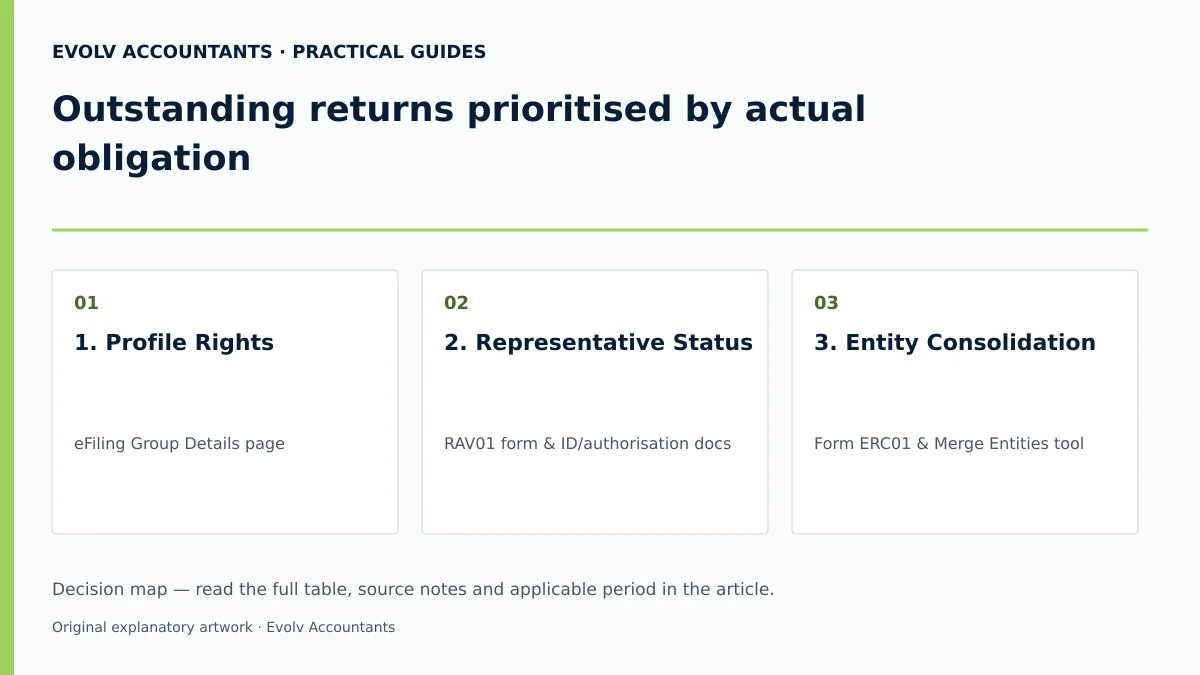
| 1. Profile Rights | eFiling Group Details page 15 | eFiling Administrator | TCS & Verification boxes ticked 8 | Update group rights under Manage Groups 15 |
| 2. Representative Status | RAV01 form & ID/authorisation docs 16 19 | Public Officer / Director | Active RR status displayed on eFiling 19 | Upload supporting documents to SARS 19 |
| 3. Entity Consolidation | Form ERC01 & Merge Entities tool 21 22 | Registered Representative | All tax reference numbers displayed 22 27 | Perform Entity Merge under Registered Details 22 |
| 4. Return Filing | Payroll records, VAT reports, AFS 4 5 | Accountant / Tax Practitioner | Submission receipts & ITA34 / EMP201 confirmations 2 14 | Re-submit rejected returns; resolve queries 13 25 |
| 5. Debt Settlement | Statement of Account & eFiling payment 14 31 | Financial Manager | Zero balance or approved payment arrangement 1 9 | Apply for deferred payment arrangement 31 |
| 6. Status Verification | My Compliance Profile dashboard 7 9 | Tax Practitioner | All indicators reflect Green (Compliant) 9 | Submit Challenge Status query via eFiling 25 36 |
| 7. PIN Issuance | TCS Request dashboard & PIN letter 10 38 | Registered Representative | Active 10-character TCS PIN generated 33 34 | Issue SMS/Print PIN to third parties 34 |
Reproducible Hypothetical Example
Scenario: SME Alpha (Pty) Ltd, a South African private company, discovers a red "Non-Compliant" status on its My Compliance Profile due to two outstanding VAT201 returns and an unpaid Income Tax balance of R15,000 [illustrative value] 9 14.
Resolution Workflow:
- Diagnostic Review: The Registered Representative accesses the MCP tab and expands "Submission of Returns" and "Debt" 9 29.
- Document Preparation: The company accountant gathers monthly sales invoices and purchase receipts for the two unfiled VAT periods 4 5.
- Return Filing: Both VAT201 returns are submitted via eFiling. The resulting VAT liability is R8,000 [illustrative value] 14.
- Payment & Settlement: SME Alpha settles the R15,000 Income Tax debt and R8,000 VAT liability via eFiling EFT 1 31.
- Validation: After 48 hours, the MCP dashboard is refreshed 30. The Overall Compliance Status, Submission of Returns, and Debt indicators all reflect green 9.
- PIN Application: The Registered Representative requests a Good Standing TCS PIN, generating an active PIN for commercial tender submission 10 33.
Frequently Asked Questions
How long does a Tax Compliance Status (TCS) PIN remain valid?
As SARS specifies, compliance status "is not static and changes according to his/her/its continued compliance with tax requirements" 11. A TCS PIN contains an issuance date and an expiry date (typically 12 months unless cancelled) 33. However, third parties verifying the PIN see the taxpayer's real-time compliance status at the exact date and time of viewing, meaning any subsequent non-compliance will instantly reflect as non-compliant 6 11.
What is the difference between an Entity Merge and Form ERC01?
"Merge Entities" is an eFiling tool used to combine duplicated tax registration records under a single entity profile 8 22. Form ERC01 (Entity Reference Number Confirmation) is an online declaration where taxpayers verify and confirm all pre-populated tax reference numbers before activating My Compliance Profile 21 22. Taxpayers must complete the Entity Merge process if any tax types are missing from Form ERC01 22 27.
Why does My Compliance Profile display "Compliant (New Taxpayer)"?
When a taxpayer is recently registered and has not yet reached its first filing or payment due date, SARS displays the status indicator "Compliant (New Taxpayer)" 29 30. SARS shares additional context with authorised third parties indicating that the entity is a new registrant with limited compliance history 30 45.
Can an external accountant act as a Registered Representative on eFiling?
Under SARS guidelines, an external accountant or tax practitioner cannot be appointed as a Registered Representative for a legal entity unless they are a direct employee of that entity 16. External practitioners must be granted permission by the entity's Registered Representative or Individual Taxpayer via the "Manage Access Requests" tool on eFiling 20.
What should an SME do if eFiling shows non-compliance for an error or paid balance?
If the MCP displays non-compliance due to a SARS processing delay or data discrepancy, the taxpayer can hover over the red indicator and select "How to address non-compliance" or log a "Challenge Status" query under Tax Status -> My Account Enquiries 25 30 36. Supporting documents (TCR01) can be uploaded directly to the query case page for SARS review 37 38. Describe your tax-compliance question and the records available so Evolv can scope the next steps. Ask Evolv about outstanding returns prioritised by actual obligation. Share the relevant records so the support required can be scoped. Ask Evolv about outstanding returns prioritised by actual obligation
Related guides
- Obtaining a tax compliance status PIN
- Restoring compliance after an unpaid tax balance
- The Proactive SARS Audit Guide: Keeping Your Business Ledger Sanitised
Sources
- Manage your Tax Compliance Status | South African Revenue Service
- https://www.sars.gov.za/wp-content/uploads/Ops/Guides/GEN-ELEC-08-G01-Guide-to-the-Tax-Compliance-Status-functionality-on-eFiling-External-Guide.pdf
- https://www.sars.gov.za/wp-content/uploads/Ops/Guides/LAPD-TAdm-G01-Short-Guide-to-the-Tax-Administration-Act-2011.pdf
- https://www.sars.gov.za/wp-content/uploads/Ops/Guides/GEN-REG-01-G04-How-to-Complete-the-Registration-Amendments-and-Verification-Form-RAV01-External-Guide.pdf