
Registering a company as an eFiling taxpayer
18 April 2025

Registering a company as an eFiling taxpayer requires appointing an authorised registered representative and activating an organisation profile with SARS.
Setting up a company taxpayer profile on South African Revenue Service (SARS) eFiling establishes official digital tax governance for South African small and medium enterprises (SMEs) 1 2 3. Operational access requires creating a primary eFiling user login, setting up an Organisation portfolio, formally appointing and verifying a single legally recognised Registered Representative (such as a public officer or director), and linking the company's income tax reference number 3 4 5 6 7.
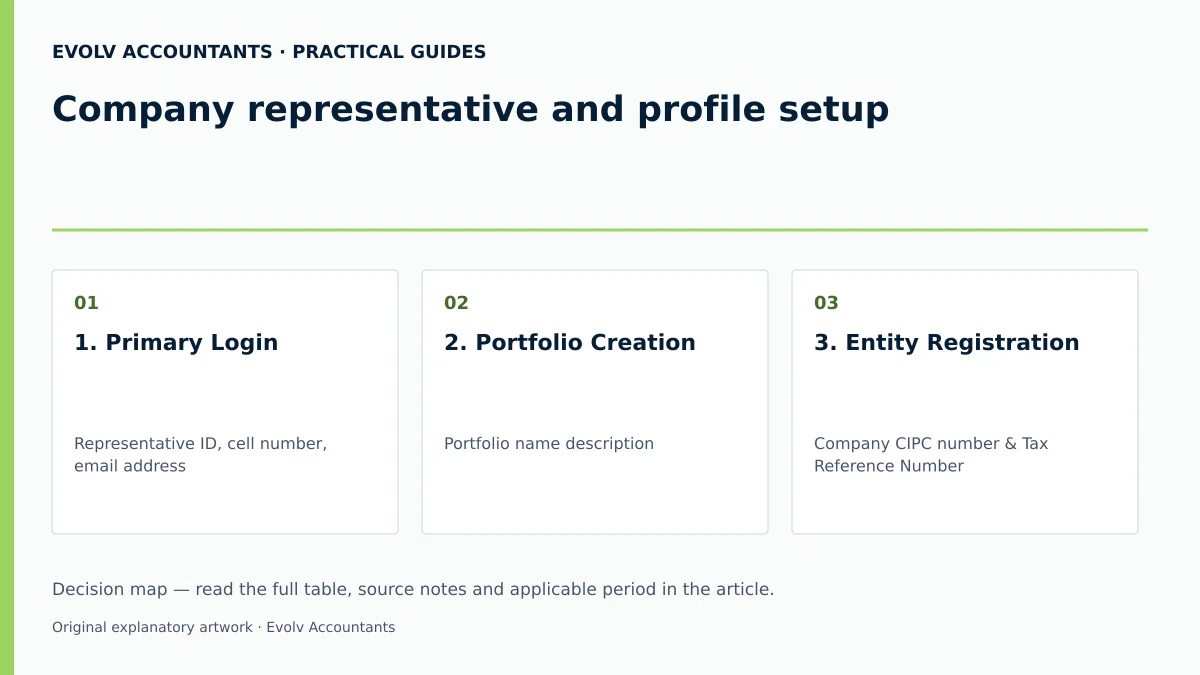
Company representative and profile setup
This guide is structured for South African SME directors, financial officers, and business owners managing corporate tax governance within the jurisdiction of the Republic of South Africa under SARS regulatory oversight. The procedural instructions reflect current SARS operational guidelines effective through the 2025/2026 reporting framework 8 9.
Completing company representative and profile setup means that the enterprise's tax identity is securely registered within an eFiling Organisation portfolio, an official Registered Representative holds verified status on SARS registers, and structured user rights are active for internal staff or professional advisers 4 5 10 11 12 13. Complete profile setup establishes direct, real-time access to the company's tax accounts, return submissions, statements of account, and statutory communications 1 14.
Prepare the information and authority: company representative
Under South African tax legislation and SARS regulatory guidance, every legal entity must have an appointed Registered Representative who carries statutory authority and personal accountability for the company's tax affairs, including return submissions, account maintenance, and liability payments 3 7 15.
Key legal rules, regulatory requirements, and authority inputs include:
- Single Representative Rule: SARS statutory rules stipulate that a legal entity can have only one Registered Representative recorded on its tax profile at any given time 3 7.
- Employment Restriction: An external accountant or independent tax practitioner cannot be appointed as a company's Registered Representative unless that individual is an employee of the legal entity 3.
- Company Identity Inputs: CIPC company registration number, official registered company name, trading name, and corporate financial year-end 16 17 18.
- Tax Reference Details: The official ten-digit Income Tax Reference Number issued to the company by SARS 19 20 21.
- Representative Credentials: Certified copy and original South African identity document (smart ID card or green barcoded book), passport, or valid permit of the designated representative 15 22 23 24.
- Proof of Business/Residential Address: Original utility bill, bank account statement, or municipal account less than 3 months old confirming the physical address 25.
- Proof of Authority: Formal board resolution or letter of authorisation on company letterhead confirming the individual's appointment as Public Officer or Registered Representative 12 13 15.
- Security & Contact Inputs: A primary eFiling login username, password, individual cell phone number, and unique email address for One-Time PIN (OTP) multi-factor authentication 14 19 26.
Evolv recommends conducting a pre-submission audit of CIPC director registers and SARS records to confirm that personal names, ID numbers, and contact details match identically across all platforms before initiating eFiling profile setup 24.
— Practical point from this guide
Complete the task step by step: profile setup
To establish the company profile and activate the Registered Representative on SARS eFiling, execute the following sequenced process grounded in primary SARS instructions:
- Register or log in to the primary eFiling user profile: Navigate to the official SARS eFiling portal, click Register, complete personal and contact details, set a primary username and password, and complete the facial biometric authentication prompt or security verification 19 26.
- Create an Organisation Portfolio: From the eFiling home screen, select My Profile > Portfolio Management > Add Portfolio 5 27. Enter a descriptive portfolio name (e.g., "Company Name Portfolio"), select Organisation as the Portfolio Type, and click Add Portfolio 27 28.
- Add the Company Taxpayer Entity: Select Organisations from the top menu, click Organisation > Register New on the left menu, select Company from the Entity Type dropdown, enter the CIPC registration number, company name, and tax reference number, and assign the entity to a group (such as System Default) 6 16.
- Activate Registered Representative Status: Select Organisations > SARS Registered Details > Activate Registered Representative 7 15. Review the statutory legal declaration confirming personal accountability for tax compliance, select I Agree, choose the representative capacity (e.g., Public Officer), and click Activate New Registered Representative 15 24 29.
- Upload Verification Documents (if prompted): If SARS records do not automatically confirm the applicant as the recorded representative, the status will display Unconfirmed or Request Under Verification 12 30. Access the Registration Workpage via SARS Correspondence, click Upload Supporting Documents, attach the legal entity authorisation letter and representative ID copy (ensuring file sizes are under 5MB in .pdf, .doc, .docx, .jpg, or .png format), and click Submit within 21 business days 12 13 31 32.
- Configure Rights Groups and User Permissions: Navigate to Organisations > Organisation > Rights Group > Manage Groups 10. Click Setup New Group or Open an existing group, assign an Authorisation Level (View Only, Completions, or Submissions), select the applicable tax types (e.g., Income Tax, PAYE, VAT), and invite internal users or tax practitioners to the group 10 27 33 34.
Check the result against the evidence: company representative
Submitting an online activation request or uploading verification documents creates an administrative case with SARS; it does not constitute final approval 11 12 31 35. SME officers must verify completion against independent operational evidence rather than assuming submission equals acceptance.
Verify profile setup against these four independent evidentiary markers:
- eFiling Activation Status: Under Organisations > SARS Registered Details > Activate Registered Representative, verify that the Activation Status on eFiling explicitly displays Active 12 13. Statuses displaying Unconfirmed, Request Under Verification, or Rejected indicate incomplete setup 12 13 30.
- Registration Workpage Confirmation: On the Registration Workpage, ensure the overall case status displays Request Successful 35.
- Official Notice of Registration: Navigate to SARS Registered Details > Notice of Registration, click Request New, and download the generated official Notice of Registration (IT150 / Company Notice) displaying the active company tax reference number and registered particulars 19 20 36.
- Dashboard & Statement Access: Confirm that the company name appears in the top taxpayer selection dropdown on the eFiling Dashboard, granting full access to statements of account, tax compliance status queries, and return filing functions 1 14.
Handle exceptions and unresolved cases: profile setup
SMEs frequently encounter title-specific edge cases, missing data flags, or technical blocks during profile setup:
- Tax Reference Number Registered on Third-Party Profile: If the company's tax reference number is already linked to a former accountant or practitioner's eFiling profile, navigate to Organisations > Organisation > Tax Types > Manage Tax Types and select Obtain Full Shared Access or Remove Tax Practitioner Access 37 38 39. Shared access or transfer requests require authorisation from the owner or Registered Representative 40 41 42.
- Rejected Activation Status: An Activation Status displaying Rejected indicates that the captured tax reference number or practitioner number is invalid, or captured personal details do not align with SARS records 13 24. Click Update Details, align the eFiling profile fields with official identity documents, and resubmit 24.
- Duplicate Contact Details Error: If eFiling flags that an email address or cell phone number is actively in use by another eFiler, insert an alternative direct contact number or email address to proceed 26.
- Document Upload Case Expiry: Supporting documents must be uploaded within 21 business days of case creation 31 43. If documents are not submitted within this window, SARS automatically declines the case, requiring a fresh activation request 31 43.
- Inactive Tax Reference Numbers / Branch Restrictions: If a company tax reference number is coded as inactive, or if the enterprise has multiple unmerged tax profiles, online eFiling activation will be blocked 14 37 44. The representative must book an appointment at a SARS branch or submit an enquiry via the SARS Online Query System (SOQS) to reactivate or merge the profile before online setup can continue 22 36 44 45.
Next steps for SARS account and eFiling
Practical Hypothetical Example
Consider Apex Manufacturing (Pty) Ltd (an illustrative South African SME), registered with CIPC (Registration Number: 2024/000123/07) and holding SARS Income Tax Reference Number 9012345678 (all values illustrative).
- Representative Setup: The appointed Director, Ms N. Dlamini, logs into her primary eFiling profile and creates an Organisation portfolio named "Apex Manufacturing Portfolio" 5 27 28.
- Entity Linkage & Activation: Ms Dlamini adds Apex Manufacturing (Pty) Ltd under Register New taxpayer, navigates to Activate Registered Representative, accepts the legal liability declaration, and submits her capacity as Public Officer 6 15 16 29.
- Verification: SARS flags the request for document verification. Ms Dlamini uploads the signed board resolution and her certified ID copy (file size 1.2MB .pdf) within 21 business days 12 31 32. Upon SARS review, her status updates to Active 12 13.
- Tax Advisory Delegation: Ms Dlamini creates a Rights Group named "Evolv Accounting Group" with Completions authorisation level for Income Tax and VAT, and invites Evolv's Tax Practitioner profile 10 33. She retains Submissions authority for final return approvals, ensuring robust internal governance 33.
Task and Completion Checklist
| Step | Input or evidence | Responsible person | Completion check | Exception or next action |
|---|---|---|---|---|
| 1. Primary Login | Representative ID, cell number, email address 26 | Designated Representative | eFiling user profile registered and security contact set 19 26 | Enter alternate contact if duplicate error appears 26 |
| 2. Portfolio Creation | Portfolio name description 27 28 | Designated Representative | Organisation portfolio visible under Portfolio Management 5 27 | Select "Change Portfolio Type" if misclassified 28 |
| 3. Entity Registration | Company CIPC number & Tax Reference Number 6 16 | Designated Representative | Company listed under Taxpayers in Organisation portfolio 6 16 | Request tax type transfer if registered elsewhere 39 46 |
| 4. Representative Activation | Signed board resolution & certified ID copy 12 15 22 | Designated Representative | Activation status displays "Active" on eFiling 12 13 | If "Unconfirmed", upload docs within 21 business days 30 31 |
| 5. Rights Group Setup | User invitations & tax type selections 10 33 | Representative / Administrator | Rights Group active with assigned authorisation levels 10 33 | Resend invitation if unaccepted after 5 working days 47 |
Frequently Asked Questions
Can an external tax practitioner or accountant act as our company's Registered Representative on SARS eFiling?
No. SARS statutory rules specify that an external accountant or tax practitioner cannot be appointed as a company's Registered Representative unless they are a direct employee of the legal entity 3. External advisers access the profile as authorised Tax Practitioners via shared portfolio rights 3 4 40.
What should we do if our company tax number is linked to a former accountant's eFiling profile?
The appointed Registered Representative should navigate to Organisations > Organisation > Tax Types > Manage Tax Types on eFiling and select Obtain Full Shared Access or Remove Tax Practitioner Access 38 39. This initiates a formal access transfer request 39 46.
How long does SARS allow for uploading supporting documents during representative verification?
SARS provides exactly 21 business days from the case creation date to upload and submit required supporting documents via the eFiling Registration Workpage 31 43. If documents are not submitted within 21 business days, the case expires and is declined 31.
What is the difference between "Completions" and "Submissions" authorisation levels in eFiling Rights Groups?
Users assigned Completions authority can view and complete tax returns or applications on eFiling but cannot submit them to SARS 33. Users assigned Submissions authority hold full rights to view, complete, and submit returns directly to SARS 33.
How do we independently confirm that our company representative profile setup is complete?
Completion is confirmed when the Activation Status on eFiling reads Active under Activate Registered Representative, the Registration Workpage status shows Request Successful, and an official Notice of Registration (IT150) can be requested and downloaded under Notice of Registration 12 13 35 36. Ask Evolv about official tax number recovery without exposing identity. Share the relevant records so the support required can be scoped. Ask Evolv about company representative and profile setup. Share the relevant records so the support required can be scoped.
Related guides
- Recovering a forgotten SARS tax number
- Registering an individual for income tax
- Compliance and Regulations: Keeping Your Business on Track
Sources
- https://www.sars.gov.za/wp-content/uploads/Ops/Guides/GEN-ELEC-18-G01-How-to-Register-for-eFiling-and-Manage-Your-User-Profile-External-Guide.pdf
- https://www.sars.gov.za/wp-content/uploads/Ops/Guides/GEN-REG-01-G04-How-to-Complete-the-Registration-Amendments-and-Verification-Form-RAV01-External-Guide.pdf
- How do I register for tax | South African Revenue Service
- Register as a taxpayer | South African Revenue Service