
Tax compliance for a newly registered company
11 December 2025

Tax compliance for a newly registered company requires establishing eFiling authority, verifying registered details, maintaining return readiness, and managing Tax Compliance Status PINs.
For newly incorporated small and medium enterprises (SMEs) in South Africa, maintaining statutory tax compliance requires navigating the digital tax framework governed by the South African Revenue Service (SARS) under the Tax Administration Act, 2011 (TAA) 1 2 3.
Achieving full filing readiness demands that an enterprise establishes formal authority on eFiling through a designated Registered Representative (RR) 4 5, verifies and updates legal entity particulars on the Registration, Amendments and Verification (RAV01) form 1 6, merges all tax product reference numbers under a unified profile 7 8 9, and activates the Tax Compliance Status (TCS) profile 7 10. Check the entity’s actual My Compliance Profile (MCP).
SARS may show “Compliant (New Taxpayer)” where its records indicate that the first filing and payment due date has not yet been reached. This status does not remove upcoming obligations 11 12 13 14.
New taxpayer registration and filing readiness
Tax compliance for a newly registered company applies to directors, public officers, financial managers, and internal accounting personnel operating within the Republic of South Africa under the tax administration framework enforced by SARS 2 4 5 15. The applicable period commences immediately upon company incorporation with the Companies and Intellectual Property Commission (CIPC) and extends through the current corporate fiscal year and subsequent tax periods 3 16 17.
In statutory tax administration, completion does not merely mean receiving a corporate registration number or obtaining an initial Taxpayer Reference Number (TRN) from SARS 15 17.
True tax compliance completion means establishing an active eFiling profile 1 18, completing representative verification 19 20, verifying registered particulars on the RAV01 form 1 6, merging all active tax products under a single legal entity view 7 8 9, reviewing My Compliance Profile and understanding any “Compliant (New Taxpayer)” indicator 11 12, and implementing internal record-keeping systems that satisfy statutory audit requirements 21 22 23.
— Practical point from this guide
To ensure clarity for corporate governance, administrative obligations are structured across three distinct authorities:
- Statutory Law (Tax Administration Act, 2011): Establishes the single registration framework 2 17, mandates the allocation and use of Taxpayer Reference Numbers 15 24, imposes strict duties on taxpayers to retain original books of account and records within South Africa 22 23, authorises SARS to inspect business premises 25 26, and codifies the statutory regime for confirming tax compliance status 27 28.
- Regulator Guidance (SARS External Guides): Outlines procedural eFiling operations, including Registered Representative activation workflows 19 29, RAV01 maintenance rules 1 6, Entity Reference Number Confirmation (ERC01) form submission 8 30, entity merging rules 9, and My Compliance Profile (MCP) dashboard indicators 11 12.
- Evolv Recommendations: Practical advisory steps designed by Evolv Accountants to help South African SMEs align corporate governance with tax schedules, establish internal user access controls, verify CIPC data against SARS records prior to first filing dates, and ensure continuous commercial filing readiness.
Prepare the information and authority: new taxpayer registration
Before accessing eFiling maintenance tools or requesting a Tax Compliance Status PIN, a newly registered company must structure its legal representation and gather required evidentiary inputs 4 5 6 29.
Statutory Authority and eFiling Roles
- Registered Representative (RR): Under SARS regulatory rules, a legal entity can have only one Registered Representative 5. The RR is appointed with full legal rights to act on behalf of the company (such as a Public Officer or Accounting Officer) 5 19. An external accountant or tax practitioner cannot be appointed as a company's Registered Representative unless they are a direct employee of the legal entity 5.
- Tax Practitioner Permissions: External tax practitioners must belong to a Recognised Controlling Body (RCB) or statutory regulator 31. A tax practitioner can only access or maintain a company's registered details after the company's Registered Representative approves their authorisation request via the "Manage Access Requests" functionality on eFiling 32 33.
Required Inputs and Primary Documentation
To complete registration maintenance and filing activation, the business must assemble the following records:
- CIPC incorporation documents, official registered name, trading names, and CIPC registration number 6 9.
- The allocated corporate Income Tax Reference Number 6 15 34.
- Director and Registered Representative identification documents (South African ID or passport) 5 35.
- Proof of physical business address and postal address details 6 36.
- Confirmation of a South African commercial bank account registered in the company's legal name 6 36.
- Formal Legal Entity Authorisation resolution signed by directors appointing the Registered Representative 20 29.
Technical Document Upload Rules
When submitting supporting documentation through SARS Correspondence on eFiling, files must adhere to strict regulator parameters 29 37:
- File Size Limit: The maximum allowable size per uploaded document is 5MB 37.
- Allowed Formats: Documentation must be saved as .pdf, .doc, .docx, .xls, .xlsx, .jpg, or .gif 37.
- Rejection Triggers: Password-protected files, spreadsheets containing multiple active sheets, duplicate file names, or blank/empty documents will cause document group rejection 37.
Complete the task step by step: filing readiness
Achieving complete filing readiness requires executing a sequenced administrative process grounded in primary SARS eFiling instructions 1 8 29 38.
- [1. Activate Representative]
- [2. Maintain Details (RAV01)]
- [3. Merge Tax Products]
- [4. Activate TCS Profile]
- [5. Verify MCP Status]
- [6. Issue TCS Security PIN]
Step 1: Activate the Registered Representative Profile
Navigate to eFiling, select the top menu Organisations, and click SARS Registered Details > Activate Registered Representative 18 29. Select the representative capacity (e.g. Public Officer), accept the statutory declaration, and submit 19. If eFiling user details match SARS master records, activation is immediate and the status updates to "Active" 20 35 39.
If details are unmatched, the status displays "Request Under Verification", requiring the user to open Returns > SARS Correspondence, access the relevant notice, and upload the Legal Entity Authorisation document group 20 29 39 40.
Step 2: Access and Review the RAV01 Form
Select Maintain SARS Registered Details under the SARS Registered Details menu 41. Click "I agree" on the maintenance landing page to confirm authorisation and open the RAV01 form 32 34. Verify pre-populated legal entity details, physical addresses, contact numbers, banking details, and trading names 5 6 34.
Step 3: Perform Entity Merging and Submit Form ERC01
Entities registered for multiple tax types must perform the "Merge Entities" function under SARS Registered Details to link all tax reference numbers under a single corporate profile 7 8 9. Access the Entity Reference Number Confirmation (ERC01) form, confirm that all matched tax reference numbers are displayed, accept the statutory declaration confirming details are true and correct, and click "Submit Form" 8 9 30 42.
Step 4: Activate Tax Compliance Status (TCS) Services
Ensure the company is active on eFiling for at least one core tax product (Income Tax, PAYE, or VAT) 43. Navigate to Tax Status > Tax Compliance Status > Activation 10 38. Tick the Tax Compliance Status check box, read and accept the disclaimer, and click "Activate" 10. The system will display "Successfully Activated" upon completion 44.
Step 5: Verify My Compliance Profile (MCP)
Select My Compliance Profile from the TCS menu 11 42. Confirm that the overall compliance status displays "Compliant (New Taxpayer)" 11. Review the individual indicator rows for Registration, Submission of Returns, and Debt to ensure no historical errors exist 12.
Step 6: Issue and Manage the TCS PIN
Navigate to Tax Compliance Status Request, select Good Standing as the request type, and submit the application 14 45. Once approved by SARS, expand the request reference number on the TCS Work Page to view the generated PIN 45 46 47. The PIN can be printed or sent via SMS to prospective clients or tender offices 46 48.
Check the result against the evidence: new taxpayer registration
Filing readiness cannot be assumed based on form submission alone; independent confirmation evidence must be verified across official eFiling records 11 18 44 46.
Independent Completion Evidence
- Notice of Registration (IT150): An official IT150 document generated under SARS Correspondence confirming Income Tax registration; verify VAT and employer registrations through their own records 18.
- eFiling Activation Confirmation: System status displaying "Active" on the Activate Registered Representative screen 39 and "Successfully Activated" on the TCS Activation work page 44.
- Approved ERC01 Submission: Confirmation message on eFiling indicating that the Entity Reference Number Confirmation form was successfully submitted and processed 42.
- TCS PIN Record: An active entry on the Tax Compliance Status Work Page reflecting Request Status "Approved", PIN Status "Active", and Compliance Indicator "Compliant (New Taxpayer)" 46 47.
Evidence Boundary and Status Nature
A Tax Compliance Status PIN provides authorised third parties with access to view a company's real-time tax compliance status online via eFiling at the exact date and time of query 13 49. A PIN is access to current status, not a permanent guarantee of future compliance 13 49. A company's compliance status is non-static and changes dynamically according to its continued compliance with return submission deadlines and payment obligations 13 49.
Third-party verification activity is logged under the "Who viewed my status" functionality on eFiling 50.
Handle exceptions and unresolved cases: filing readiness
When administrative exceptions or system errors arise during filing activation, specific remedies must be executed 39 51 52.
Representative Activation Discrepancies
If an eFiling representative activation reflects "Request Under Verification" or "Rejected", the eFiling user details (title, initials, surname, ID/passport number) do not match SARS master records 35 39. The user must select "Maintain Registered Users", align eFiling profile details with their official identity document, and re-submit the Legal Entity Authorisation document group via SARS Correspondence 20 29 35 40.
Branch-Only Particular Updates
Certain legal entity details cannot be updated online via eFiling 16 52:
- Registration Date: Changes to a company's official tax registration date can strictly only be performed in person at a SARS branch office 16.
- Financial Year End: Amendments to financial year-end dates cannot be updated directly on RAV01; changes require manual SARS intervention and formal administrative approval 16.
- Registration Status Updates: Specific legal entity status updates require visiting a SARS branch 52 53.
Unmerged Profiles and Missing Tax Products
If an active tax product does not appear on My Compliance Profile or Form ERC01, the entity has not completed the "Merge Entities" process 7 8 51. If tax products belonging to an unrelated entity are incorrectly linked to the company profile, the taxpayer must visit a SARS branch to request removal 51.
Non-Compliance Indicators and Challenge Status
If My Compliance Profile flags a non-compliant indicator, select the non-compliance item to review SARS recommendations 51 52:
- Submission Omissions: Select "Capture and submit the outstanding return" to access the Income Tax Work Page or relevant return 53.
- Unpaid Balances: Select "Make Payment", "Request Payment Arrangement", or "Fix My Account" to resolve account balances 53 54.
- Inaccurate SARS Records: If non-compliance is reflected in error, select "Challenge Status" on eFiling to log a case, receive a case reference number, and upload supporting TCR01 documentation for SARS audit review 37 55.
Specialist Advisory Boundaries
Complex legal disputes, administrative appeals under Chapter 9 of the Tax Administration Act, voluntary disclosure applications, or formal SARS audit investigations exceed standard eFiling maintenance and require specialist tax advisory support from Evolv Accountants.
Next steps for Tax clearance and compliance
Reproducible Hypothetical Example
An SME director incorporates a freight firm, Apex Logistics (Pty) Ltd, receiving a CIPC registration number and Income Tax reference number. To tender for a commercial transport contract, Apex Logistics requires a Tax Compliance Status PIN. The director logs onto eFiling, navigates to Organisations > SARS Registered Details > Activate Registered Representative, and completes the Public Officer declaration 18 19. Because user details require verification, eFiling displays "Request Under Verification" 39.
Under Returns > SARS Correspondence, the director uploads a PDF board resolution and director ID copy (total size 2MB, fully compliant with upload rules) 29 37 40.
Upon SARS approval, status updates to "Active" 39. The director accesses RAV01 via Maintain SARS Registered Details, selects "I agree", and executes "Merge Entities" to link the Income Tax product 8 9 32. After submitting Form ERC01 42, the director activates TCS services 10, opens My Compliance Profile to confirm the "Compliant (New Taxpayer)" indicator 11, and requests a Good Standing PIN 14 45.
The tender board enters the tax reference number and PIN into eFiling TCS Verification, obtaining instant confirmation of good standing 49 56.
Task and Completion Checklist
| Step | Input or evidence | Responsible person | Completion check | Exception or next action |
|---|---|---|---|---|
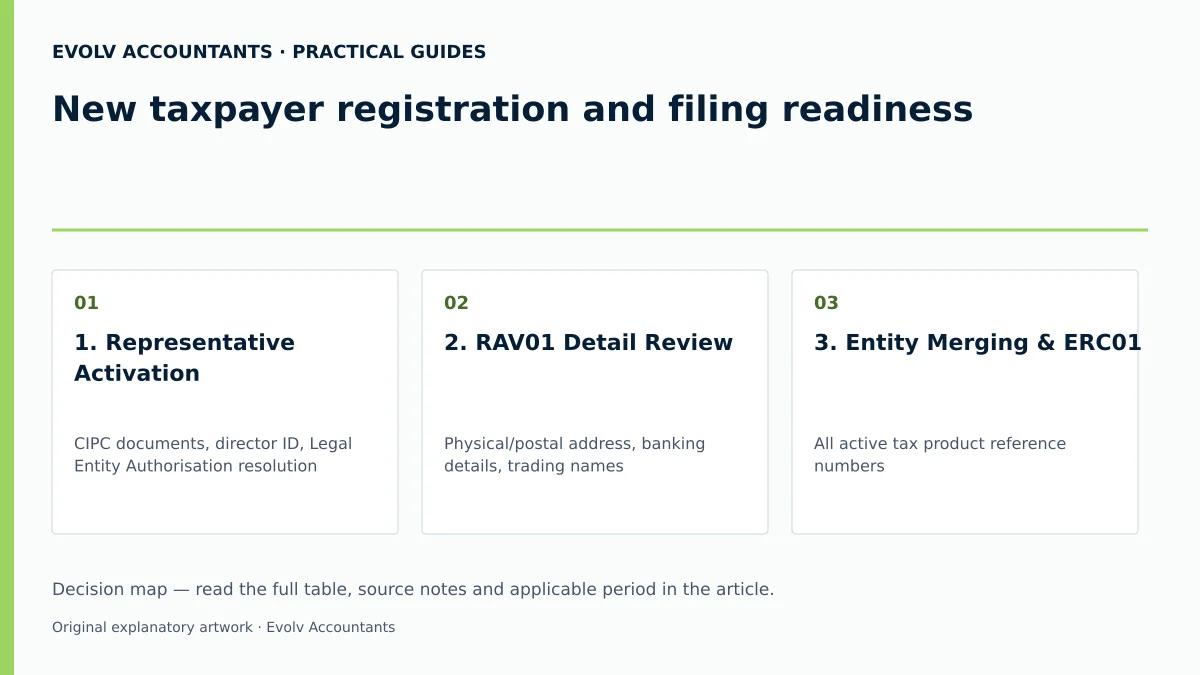
| 1. Representative Activation | CIPC documents, director ID, Legal Entity Authorisation resolution 5 29 | Appointed Representative / Public Officer 5 19 | Status reflects "Active" on Activate Registered Representative page 39 | If "Request Under Verification", upload supporting document group via SARS Correspondence 29 39 |
| 2. RAV01 Detail Review | Physical/postal address, banking details, trading names 6 | Registered Representative or Authorised Practitioner 4 33 | Pre-populated RAV01 fields verified and updated 6 34 | Follow SARS’s prescribed process for fields that cannot be amended online 16 52 |
| 3. Entity Merging & ERC01 | All active tax product reference numbers 7 8 | Registered Representative 8 30 | Form ERC01 submitted with accepted declaration 30 42 | Unmerged profiles cause missing tax products on compliance profile 8 51 |
| 4. TCS Service Activation | Active IT, PAYE, or VAT tax product subscription 43 | Registered Representative or Authorised Practitioner 10 38 | Status reflects "Successfully Activated" on TCS Activation page 44 | Ensure entity is active for at least one core tax product on eFiling 43 |
| 5. MCP Health Check | My Compliance Profile dashboard view 11 12 | Internal Accountant / Financial Manager | Record the actual MCP status; the new-taxpayer indicator applies where SARS records show the first filing/payment due date has not been reached 11 | Select red non-compliance indicators to submit returns, pay debt, or log Challenge Status 52 53 55 |
| 6. Issue TCS Security PIN | Good Standing TCS Request submission 14 45 | Registered Representative or Authorised Practitioner 14 | Active PIN generated and displayed on TCS Work Page 46 47 | Share PIN with third parties; monitor verification logs under "Who viewed my status" 13 48 50 |
Frequently Asked Questions
What does "Compliant (New Taxpayer)" mean on My Compliance Profile?
It indicates that the company is currently tax compliant, but explicitly reflects that it is a newly registered entity that has not yet reached its first statutory filing or payment due date 11.
Can an external tax practitioner act as a company's Registered Representative on eFiling?
No. An external accountant or tax practitioner cannot be appointed as a Registered Representative unless they are a direct employee of the legal entity 5. External practitioners must be granted permissions by the company's Registered Representative via eFiling 32 33.
How long is a Tax Compliance Status PIN valid, and does it guarantee future compliance?
A TCS PIN provides real-time access to view compliance status at the date and time of query 13 49. A PIN does not guarantee future compliance because compliance status changes dynamically based on ongoing filing and payment performance 13 49. SARS’s Short Guide to the Tax Administration Act explains that, SARS processes TCS applications within 21 business days 28.
What file requirements apply when uploading supporting documents to SARS?
Files must be under 5MB per document and saved in .pdf, .doc, .docx, .xls, .xlsx, .jpg, or .gif format 37. Password-protected, duplicate, or blank files are automatically rejected 37.
How are changes to a company's registration date or financial year-end updated with SARS?
Changes to a tax registration date can strictly only be performed in person at a SARS branch 16. Financial year-end amendments cannot be updated directly on eFiling and require manual SARS review and formal approval 16.
Related guides
- Checking a supplier tax compliance status
- Obtaining a tax compliance status PIN
- The Proactive SARS Audit Guide: Keeping Your Business Ledger Sanitised
Sources
- https://www.sars.gov.za/wp-content/uploads/Ops/Guides/GEN-REG-01-G04-How-to-Complete-the-Registration-Amendments-and-Verification-Form-RAV01-External-Guide.pdf
- https://www.sars.gov.za/wp-content/uploads/Ops/Guides/LAPD-TAdm-G01-Short-Guide-to-the-Tax-Administration-Act-2011.pdf
- https://www.sars.gov.za/wp-content/uploads/Ops/Guides/GEN-ELEC-08-G01-Guide-to-the-Tax-Compliance-Status-functionality-on-eFiling-External-Guide.pdf
- Manage your Tax Compliance Status | South African Revenue Service